
Why update your router firmware now
Updating your AI router firmware in 2026 is a critical maintenance step for network security and performance. Manufacturers have shifted their development focus toward AI-driven network optimization, making older firmware versions increasingly obsolete and vulnerable.
The primary driver for this update is security. Cyber threats evolve rapidly, and firmware patches close the specific vulnerabilities that hackers exploit to gain access to your home network. Without the latest updates, your router lacks the modern defense protocols required to identify and block sophisticated attacks in real-time.
Beyond security, 2026 firmware introduces significant performance upgrades. New AI-QoS (Quality of Service) capabilities allow the router to intelligently prioritize traffic. This means your video calls and gaming sessions remain smooth even when other devices are downloading large files, a feature largely absent in previous generations.
Check your current router model and version
Before you download any firmware, you need to know exactly what hardware you are running. Manufacturers release different firmware builds for different chipsets and radio configurations. Installing the wrong file can brick your device or leave your network vulnerable.
Locate the hardware label
Turn your router over and find the sticker on the bottom or back. Look for the Model Number (e.g., RT-AX88U, Archer AX73) and the Hardware Version (e.g., HW 1.0, HW 2.1). The hardware version is critical; even if the model name matches, a hardware revision change often requires a distinct firmware binary.
Find the current firmware build
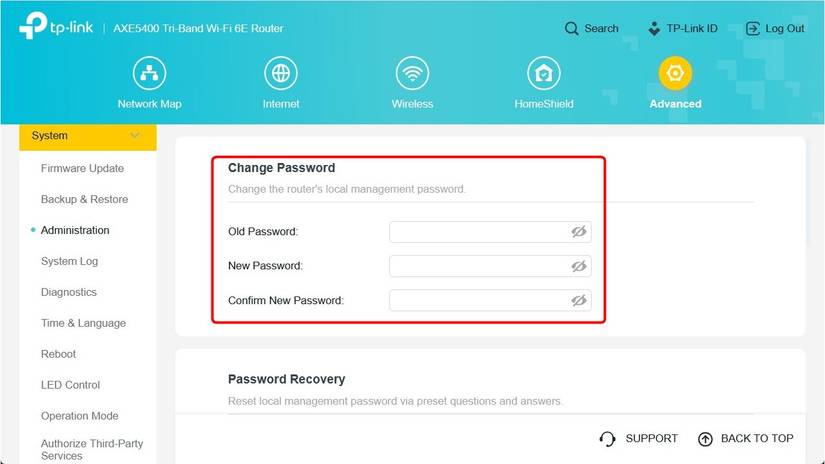
Log into your router’s admin dashboard. Most modern routers display the current firmware version on the main dashboard or under a "System Tools" or "Administration" tab. Some newer AI-enabled routers, like those managed through the Huawei AI Life app, show the version under "Updates" or "Device Information." Note the exact build number and release date.
Verify compatibility
Visit the manufacturer’s support page for your specific model. Compare your current version with the latest available release. If your hardware version matches the support page requirements, you are ready to proceed. If the latest update is not listed for your hardware version, stick with the last stable release for your specific device revision.
Download the latest firmware safely
Finding the correct firmware file starts with identifying your exact router model and the specific chip or AI processor it uses. Manufacturers release different firmware builds for various hardware revisions, so downloading a generic file for your brand can brick the device.
Visit the official support portal for your router manufacturer. Most major brands, including ASUS and Ubiquiti, maintain dedicated download sections for their latest releases. Look for the "Firmware" or "Software Downloads" tab and filter by your specific model number. The official site will list the current stable version along with release notes detailing what the new AI features or security patches address.
Check the physical label on the bottom or back of your router. Record the full model number (e.g., RT-AX86U or Dream Router 5G Max) and the hardware revision (e.g., Rev 1.0). This ensures you pull the exact file your hardware requires.
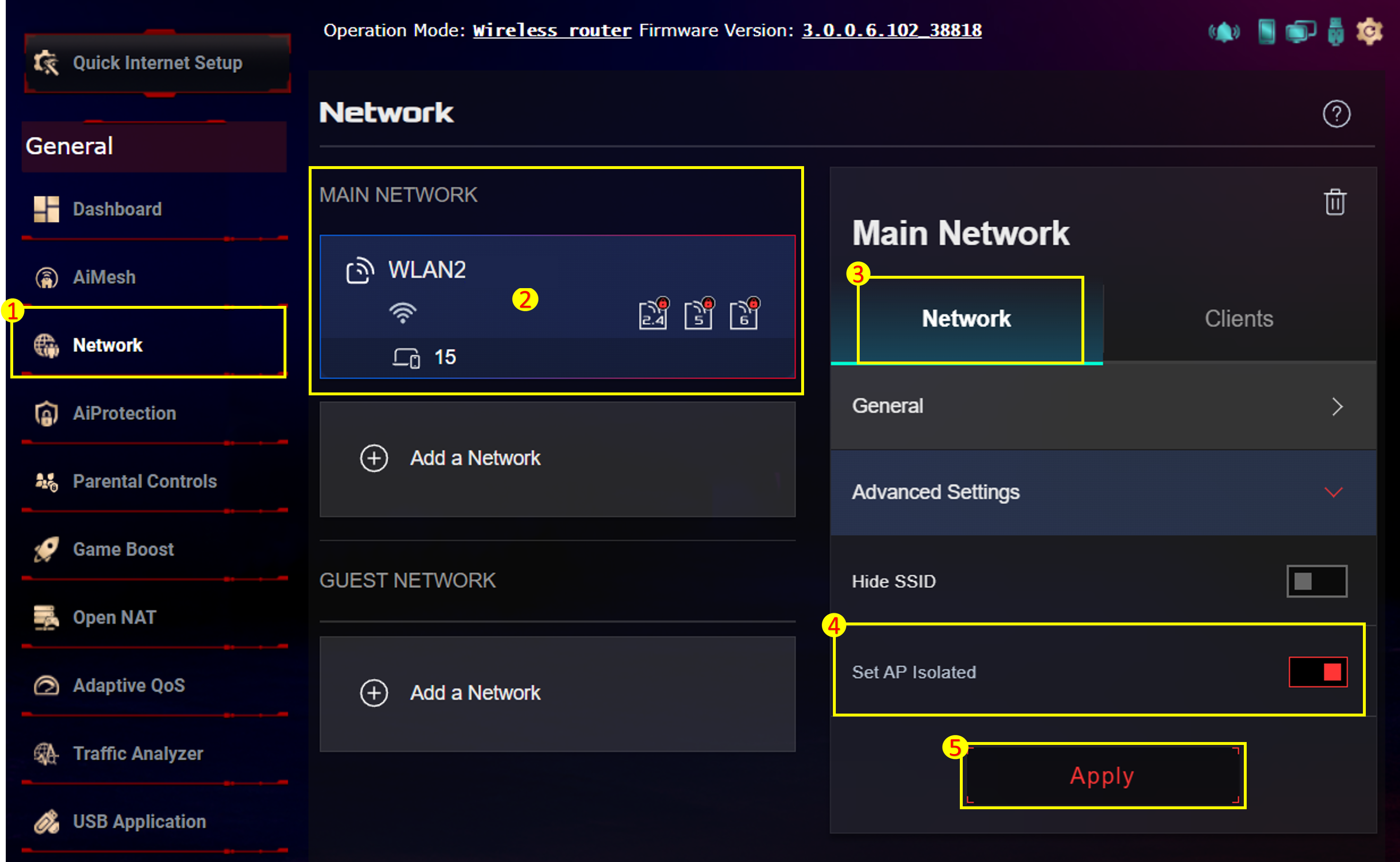
Navigate to the official support page for your brand. For example, ASUS users should go to the ASUS support FAQ page, while Ubiquiti users should visit the UniFi OS download releases page. Avoid clicking links from search engine ads that lead to generic tech blogs.
Compare the version number on the download page with the version currently running on your router. Check the release notes to confirm the update includes AI-related improvements or critical security fixes. If available, verify the file's MD5 or SHA256 checksum to ensure the download wasn't corrupted.


As an Amazon Associate, we may earn from qualifying purchases.
Once you have confirmed the correct file, download it to a stable computer connected via Ethernet. Do not use Wi-Fi for the download itself, as interruptions can corrupt the firmware file before you even begin the update process.
Install firmware and configure AI settings
Uploading the new firmware build is a straightforward process, but it requires a steady internet connection and a few minutes of patience. Once the software is active, the router’s built-in processor begins learning your network habits, allowing you to unlock features like AI-QoS for smoother gaming or video calls.
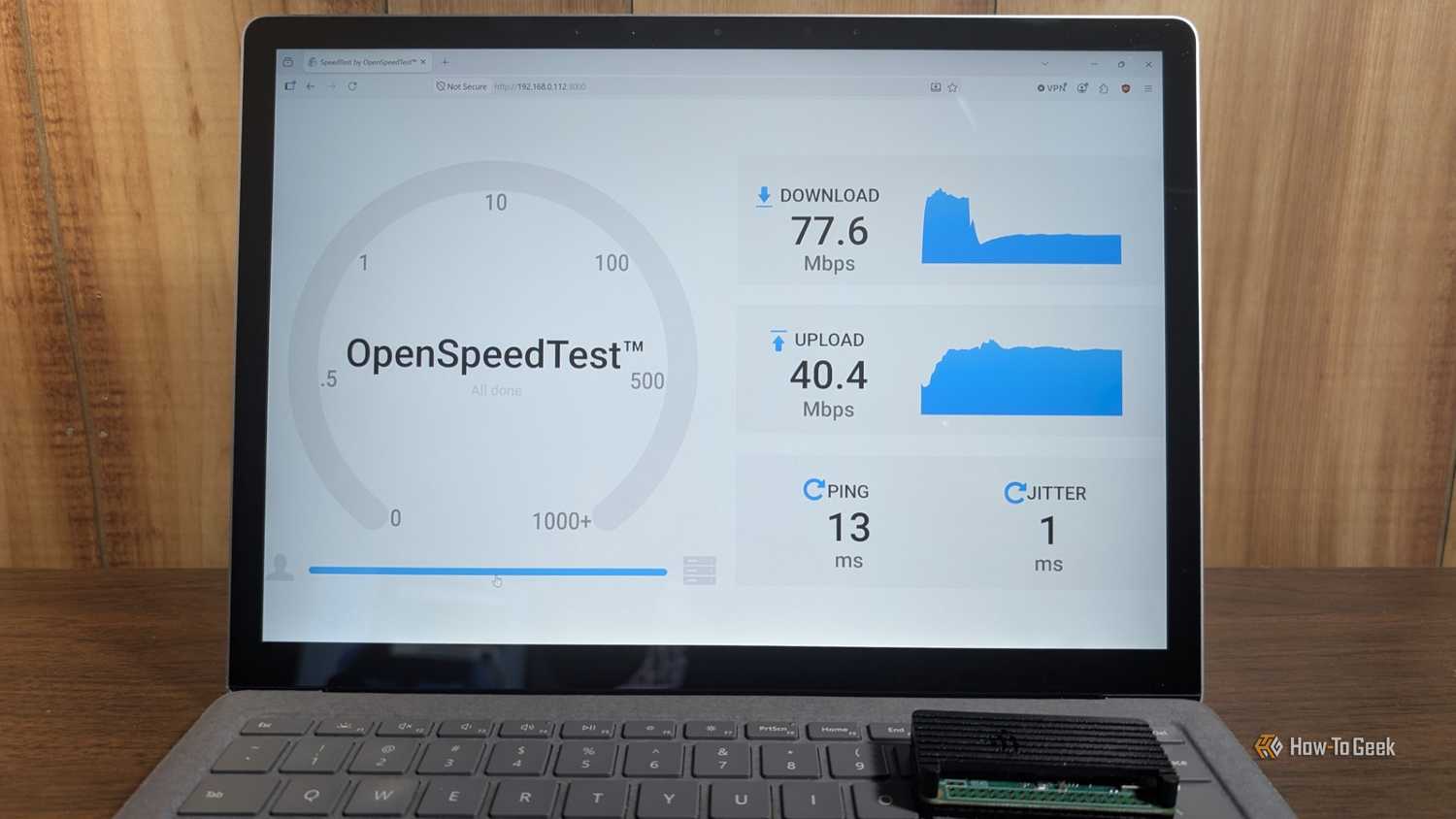
Connect to your router’s local network and open a web browser. Enter the router’s IP address (usually 192.168.1.1 or 192.168.0.1) and log in with your admin credentials. This dashboard is your control center for all updates and settings.
Locate the administration or system tools menu, then select "Firmware Upgrade." You can choose to upload the downloaded firmware file manually or enable automatic upgrades if your router supports it. Manual uploads are recommended for major version changes to ensure file integrity.

Click "Upload" or "Upgrade" and select the firmware file you prepared earlier. The router will begin flashing the new software. Do not power off the device or disconnect the Ethernet cable during this process, as it could brick the hardware. The router will reboot automatically once complete.
After the reboot, log back into the dashboard to confirm the firmware version matches the one you just installed. Check the system status page to ensure all interfaces are online and the AI processor is recognized by the system.
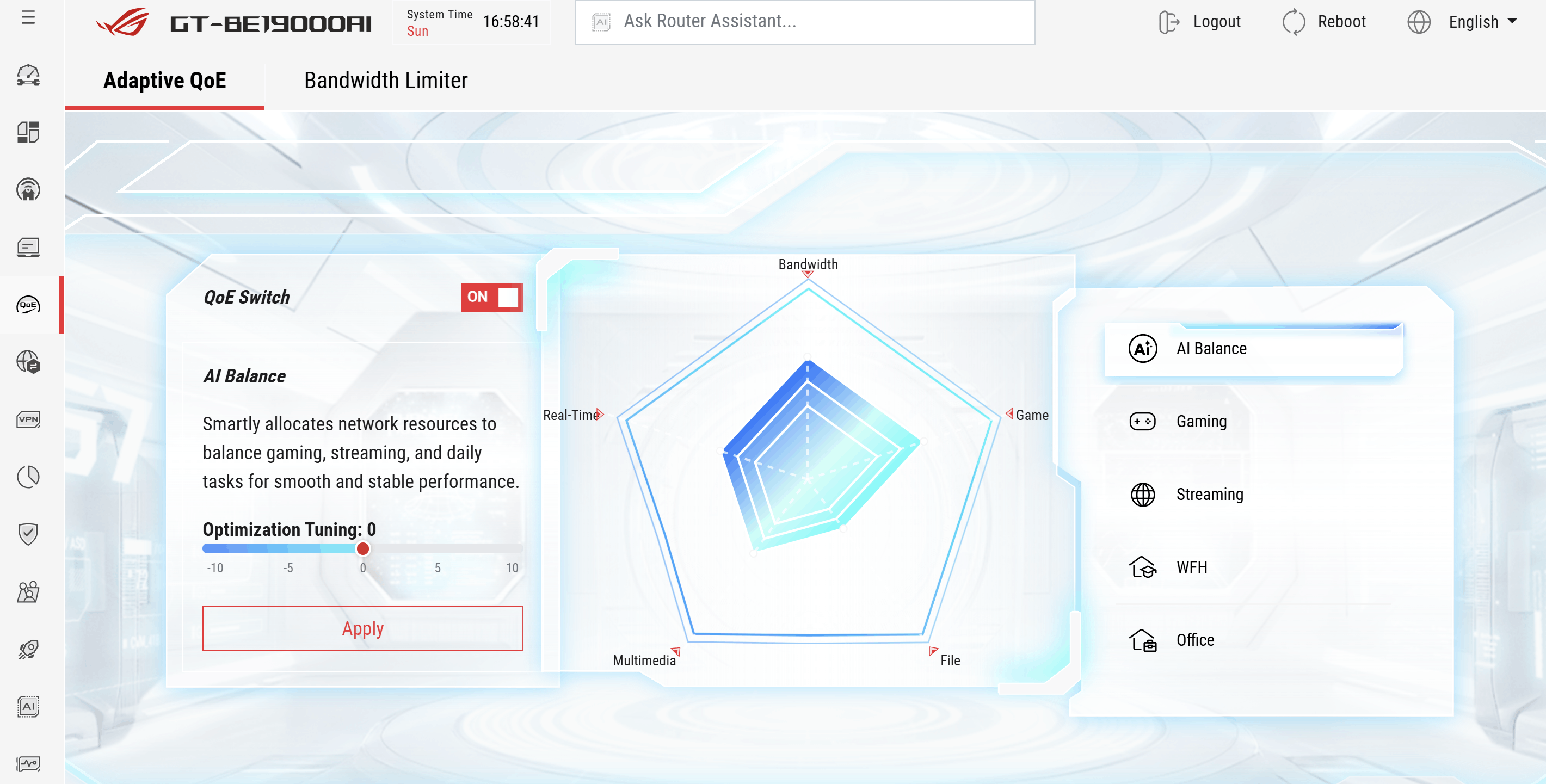
Navigate to the AI or QoS settings. Enable AI-QoS to prioritize traffic for specific devices or applications. You can also set up EasyMesh IoT expansion if you have smart home devices. These settings allow the router to dynamically allocate bandwidth based on real-time usage patterns.
The transition to AI-driven networking results in a more responsive network for gaming, streaming, and video conferencing without constant manual intervention.
Verify speed and security improvements
After flashing the new firmware, the network needs a quick health check to confirm the changes took hold. This step ensures the AI-driven features are actually active and not just sitting idle in the background.
Run a baseline speed test
Connect a device directly to the router via Ethernet for the most accurate reading, then run a speed test using a reputable tool like Speedtest.net or Fast.com. Compare the results against your ISP’s advertised plan. If you see a significant jump in throughput or lower latency, the firmware update likely optimized the routing tables.
If speeds haven’t improved, check the AI-QoS settings. Ensure the router is prioritizing your primary devices correctly. Sometimes the default AI profiles need a tweak to match your specific usage patterns, such as gaming or 4K streaming.
Confirm AI security patches are active
Navigate to the security tab in your router’s admin panel. Look for the firmware version number; it should match the latest release from your manufacturer (e.g., version 3.0.0.2.102 for recent ROG models). Check the intrusion prevention system (IPS) and firewall logs to ensure they are enabled and updating.
The new AI processors in routers like the ROG Rapture GT-BE19000AI can detect and block threats faster than traditional firmware. Verify that the AI security features are set to "Active" or "Auto" mode. If you see any alerts for blocked connections, that’s a good sign—the system is working.
Checklist: Post-Update Verification
-
Speed test shows expected or improved throughput.
-
AI-QoS is enabled and prioritizing key devices.
-
Firmware version matches the latest official release.
-
AI security/IPS features are active and not in "Passive" mode.
No comments yet. Be the first to share your thoughts!