
Check your router model and current version
Before tweaking settings, you need to know exactly what hardware is running your network and which firmware version it is currently executing. This baseline check is no longer just about performance; it is a compliance requirement. With the FCC’s March 2026 regulatory shift stopping new certifications for many foreign-made routers, ensuring your device is on the authorized list is critical to receiving future security patches and stability updates.
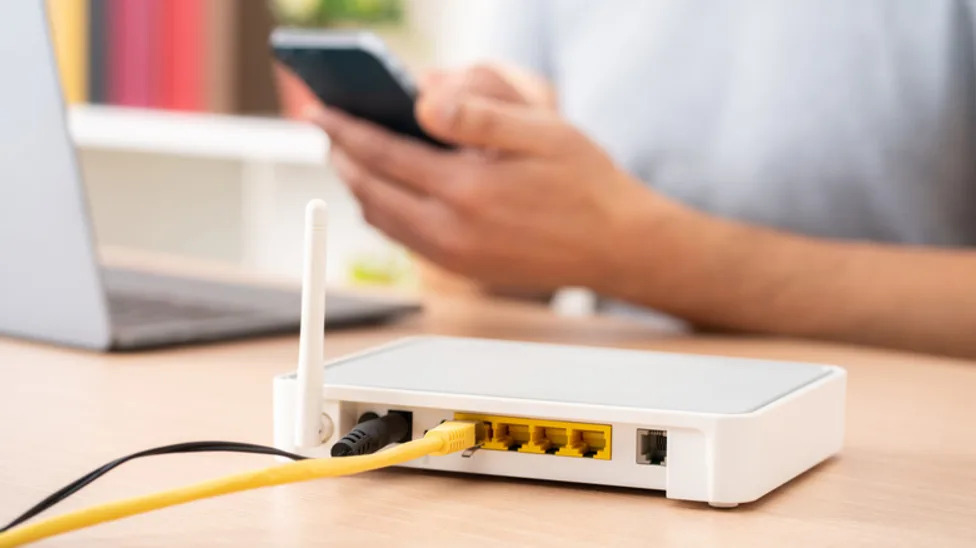
To identify your hardware, look for the label on the bottom or back of the router. Record the Model Number (e.g., RAX120, EAX80) and the Serial Number. Next, log into your router’s admin interface—usually via 192.168.1.1 or 192.168.0.1—and navigate to the Administration or System tab. Locate the Firmware Version or Current Version field. If your router supports Wi-Fi 7 or features AI-driven QoS (Quality of Service), your current version will likely be dated 2025 or earlier. You are looking for a version that explicitly mentions these 2026 capabilities to ensure your network can handle modern traffic loads efficiently.
Download the correct firmware file
Start by identifying your router’s exact model number and hardware revision. This information is usually printed on a sticker on the back or bottom of the device. Manufacturers release different firmware builds for different hardware revisions, so using a file meant for a different version can brick your router.
Navigate to the official support page for your router brand. Avoid third-party download sites or forums. In 2026, the FCC’s new enforcement actions against insecure IoT devices mean that manufacturers are prioritizing security patches for official channels. Downloading from unofficial sources risks installing malicious code that bypasses these new regulatory safeguards.
Look for the latest stable release. If your router supports Wi-Fi 7 or advanced AI QoS, the 2026 firmware updates will include these features. For example, recent TP-Link updates introduced AI-QoS for better traffic prioritization and EasyMesh support for synchronized IoT networks. These improvements are only available in the official firmware files.
Once you have the file, verify its integrity. Most manufacturers provide a checksum (MD5 or SHA256) on their download page. Use a command-line tool to ensure the file you downloaded matches the checksum exactly. This step prevents corrupted or tampered files from being installed.
After verification, you are ready to proceed with the update process. Ensure your router remains powered on and connected via Ethernet during the update to avoid interruptions.
Install the update without losing settings
The regulatory shifts have pushed major manufacturers to release firmware that fundamentally changes how your router handles traffic. These updates are not just about patching vulnerabilities; they are the vehicle for implementing AI-driven Quality of Service (QoS) and full Wi-Fi 7 compatibility. If you are running older hardware, this is the moment where your network either adapts to the new spectrum efficiency or falls behind.
Before you begin, ensure your computer is connected to the router via an Ethernet cable. Wireless updates carry a higher risk of interruption during the reboot process, which can brick the device. Once connected, log into your router’s administrative interface. Navigate to the system or administration section and look for the "Firmware Update" or "System Upgrade" option.
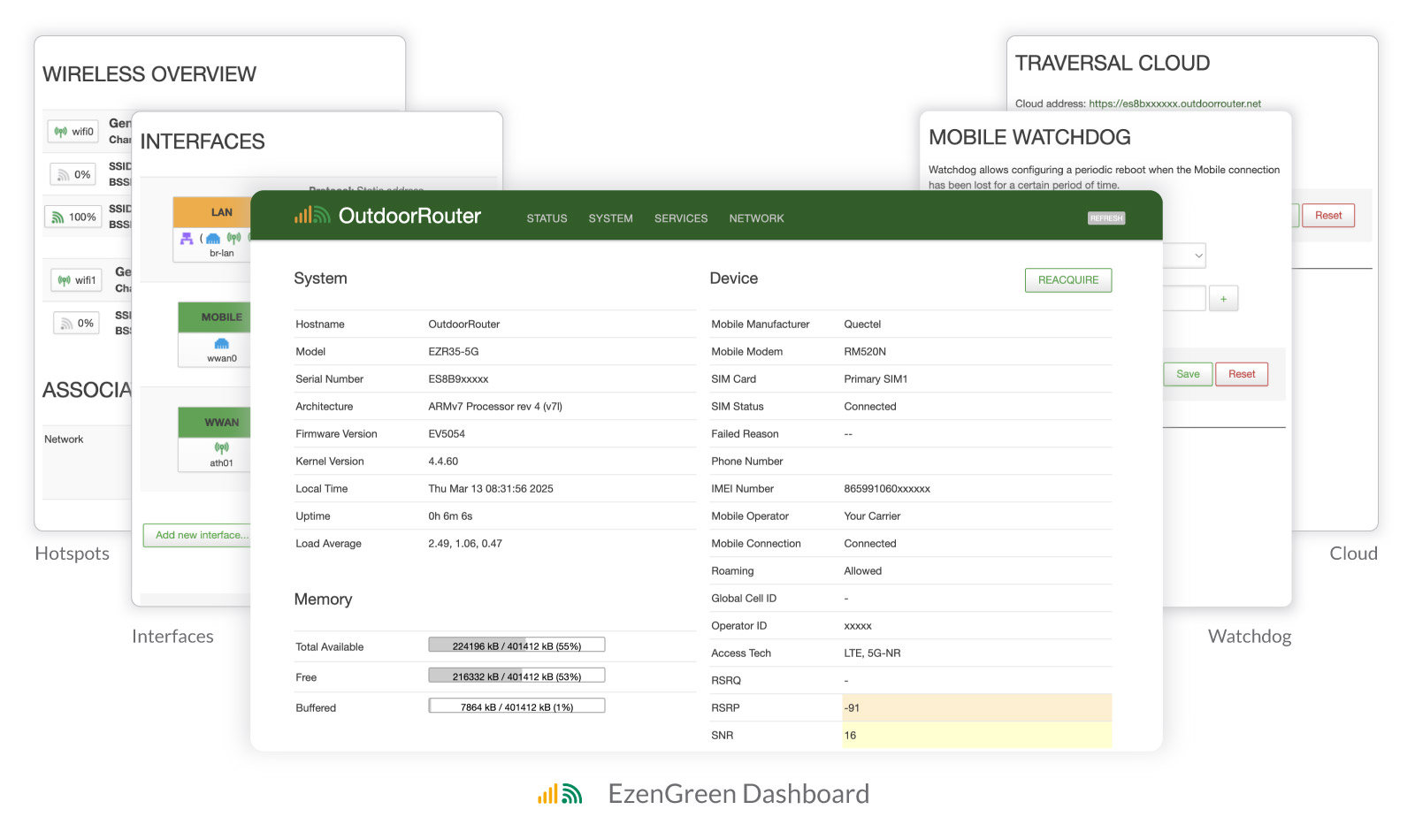
Visit your manufacturer’s official support page. Locate the specific model number of your router and download the latest 2026 firmware file. Do not rely on the router’s built-in check; manual verification ensures you have the exact build required for the regulatory compliance updates. Verify the file checksum if provided to ensure integrity.
In the admin interface, select the option to upload a local file. Browse to the firmware file you downloaded and initiate the upload. The system will verify the file structure. Do not close the browser window or disconnect the Ethernet cable during this phase. The router is writing new code to its flash memory, and any interruption here will require a risky recovery mode.
The system will prompt you for a reboot preference. This is the critical decision point. If you have custom port forwards, static IP reservations, or complex QoS rules, select "Keep Settings" or "Update Only." If your network has been unstable or you are switching to a new Wi-Fi 7 standard, select "Factory Reset." A factory reset wipes all configurations, forcing you to rebuild your network from scratch, but it ensures the new AI QoS algorithms start with a clean slate.
Confirm the reboot. The router will restart, which may take 3-5 minutes. During this time, your network will go dark. The new firmware is initializing the Wi-Fi 7 radios and loading the updated security protocols. Once the lights stabilize, log back in. If you chose a factory reset, you will need to re-enter your Wi-Fi passwords and device names.
After the reboot, verify the installation by checking the firmware version number in the system status. It should reflect the March 2026 build. Run a speed test to confirm that the new QoS parameters are active and that your devices are connecting on the appropriate Wi-Fi 7 bands if supported.
Enable AI QoS and Wi-Fi 7 features
The regulatory shift accelerated the rollout of next-generation firmware, prioritizing spectrum efficiency and intelligent traffic management. For home network administrators, this update is not just a patch; it is an infrastructure upgrade. The new firmware leverages AI-driven Quality of Service (QoS) and native Wi-Fi 7 optimizations to handle modern bandwidth demands without manual intervention.
Activate AI-Driven QoS
Traditional QoS rules required you to manually prioritize devices or applications. The 2026 firmware replaces this rigid system with AI-QoS, which learns your usage patterns and dynamically allocates bandwidth. This ensures that latency-sensitive activities like 4K streaming or video conferencing receive priority over background downloads.
- Log into your router’s admin interface via a wired connection.
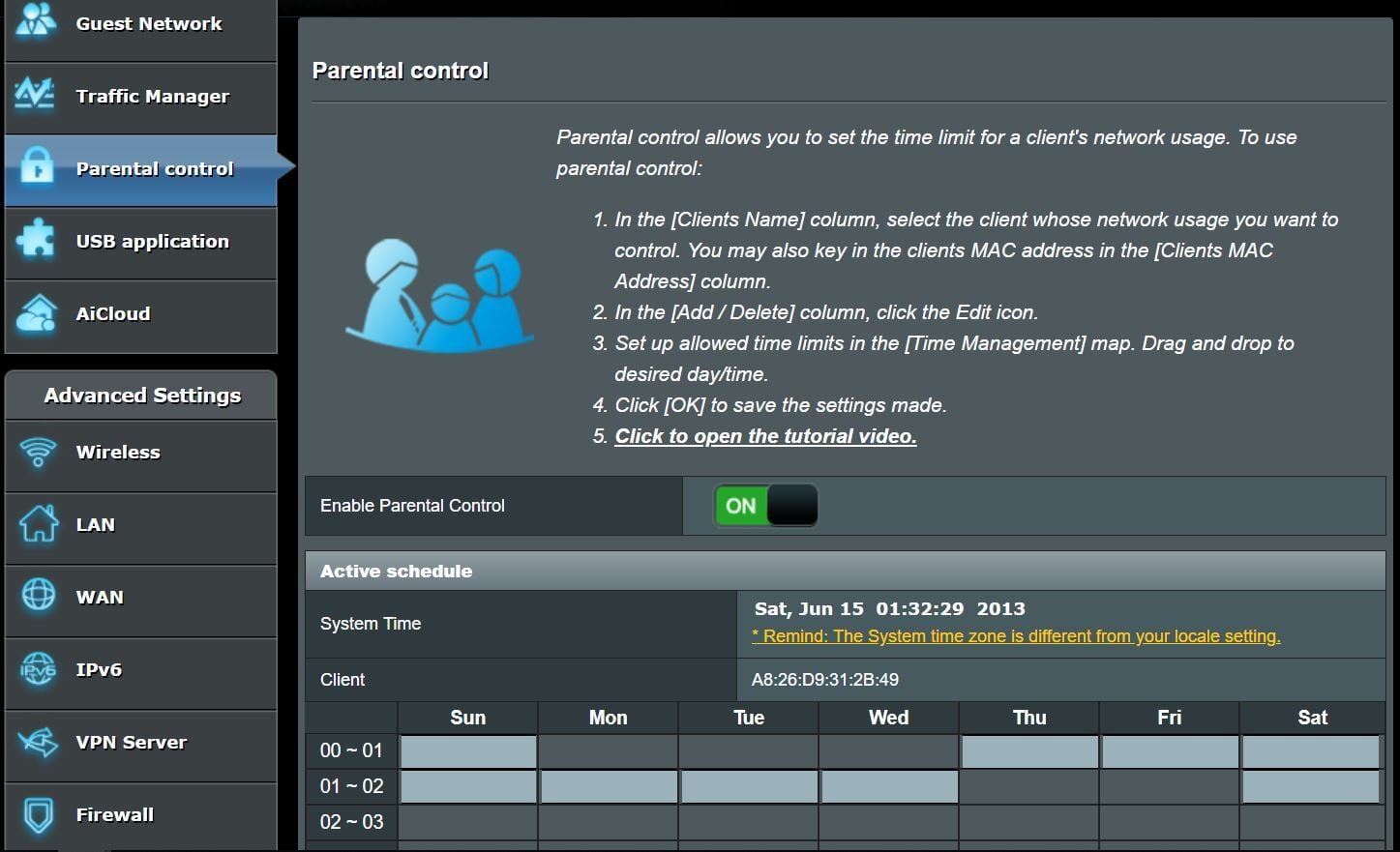
- Navigate to Advanced > Traffic Control or QoS.
- Toggle AI QoS to On.
- Select your primary usage profile (e.g., Gaming, Streaming, or General Home).
This automation reduces the need for constant manual tweaking, allowing the router to adapt to network congestion in real-time. As noted in recent firmware release notes, this feature also supports EasyMesh IoT synchronization, ensuring smart home devices do not compete with high-priority traffic.
Optimize Wi-Fi 7 Settings
Wi-Fi 7 (802.11be) introduces 320 MHz channel widths and multi-link operation (MLO), which significantly boost speed and stability. However, these features require specific configuration to function correctly.
- Go to Wireless > Advanced Settings.
- Ensure Wi-Fi 6E/7 is enabled for both 2.4 GHz and 5 GHz bands.
- Set the channel width to 160 MHz or 320 MHz (if supported by your ISP and devices).
- Enable MLO if your router and connected devices support it.
Allowing devices to connect across multiple bands simultaneously reduces latency and prevents dropouts. This is particularly useful in homes with thick walls or multiple floors. The firmware automatically negotiates the best link, providing a more consistent connection than previous generations.
Verify Performance
After enabling these features, run a speed test using a Wi-Fi 7 compatible device. Compare the results with your pre-update baseline. You should see improved throughput and lower ping times, especially during peak usage hours. If you experience instability, try disabling MLO temporarily to isolate any compatibility issues with older devices.
Verify security and network stability
Confirming your router is running the latest code is the final step to ensuring compliance and performance. The primary goal here is to validate that the AI QoS features are active and that your Wi-Fi 7 capabilities are unlocked without introducing instability.
Start by logging into your router’s admin panel and checking the firmware version. Compare this against the official release notes for your specific model. If you are using a Nest Wifi Pro, look for version numbers aligning with the March 2026 rollout, as community reports suggest significant changes from the July 2025 baseline (3.76.479819).
To validate real-world stability, check community forums for recent user experiences. A common concern post-update is connectivity drops during peak hours. Look for threads discussing specific error codes or latency spikes associated with the new AI QoS algorithms. If your network feels sluggish, a simple reboot often clears the new routing tables.
Finally, run a speed test on a Wi-Fi 7 compatible device. Compare the results to your baseline. If speeds are lower than expected, ensure your router’s firmware is fully updated to the latest patch, as early releases may have minor bugs affecting throughput.
Router firmware maintenance checklist
Firmware updates are no longer just about patching security holes; they are the primary way to unlock 2026’s technical advantages, including AI-driven QoS and Wi-Fi 7 performance enhancements. With the FCC’s March 2026 regulatory shift mandating stricter software support timelines, keeping your router’s firmware current is essential for maintaining a secure and optimized home network.
Perform these checks monthly to ensure your router remains resilient against emerging threats and maintains peak throughput.
- Check for updates: Log into your router’s admin interface and look for the latest firmware version. Manufacturers like TP-Link and Google are actively pushing updates that introduce AI-QoS and EasyMesh synchronization in 2026.
- Verify security patches: Ensure your router has the latest security patches installed to mitigate vulnerabilities, especially given the FCC’s extended cutoff for unsupported hardware.
- Review connected devices: Check the list of connected devices for any unknown or suspicious entries. Remove devices you no longer use to reduce the attack surface.
- Test network performance: Run a speed test to verify that your network is performing as expected. If you notice a drop in performance, consider rebooting your router or contacting your ISP.
- Backup configuration: Before applying any major firmware updates, back up your router’s configuration. This allows you to restore your settings if the update fails or introduces new issues.
-
Check for firmware updates
-
Verify security patches
-
Review connected devices
-
Test network performance
-
Backup configuration
Common router firmware: what to check next
The regulatory shift is the most significant event for home network administrators in recent years. As the FCC moves to enforce stricter security standards, many users are asking how these changes affect their existing hardware and future upgrades. Understanding the timeline and technical requirements will help you maintain a secure and high-performance network without unnecessary disruption.
For users concerned about the extended 2029 cutoff for certain banned devices, the FCC cites the ongoing dangers of unsupported hardware as the primary reason for the delay. However, relying on outdated firmware is risky. If your router does not support Wi-Fi 7 or AI QoS, consider upgrading to a 2026-compliant model to ensure long-term security and speed.
No comments yet. Be the first to share your thoughts!