
Check the setup requirements
Before tweaking router settings for low-latency gaming or 4K streaming, verify your physical and network foundation. A misconfigured or outdated base will bottleneck any optimization attempt. This section walks you through the essential prerequisites to ensure your router is ready for performance tuning.
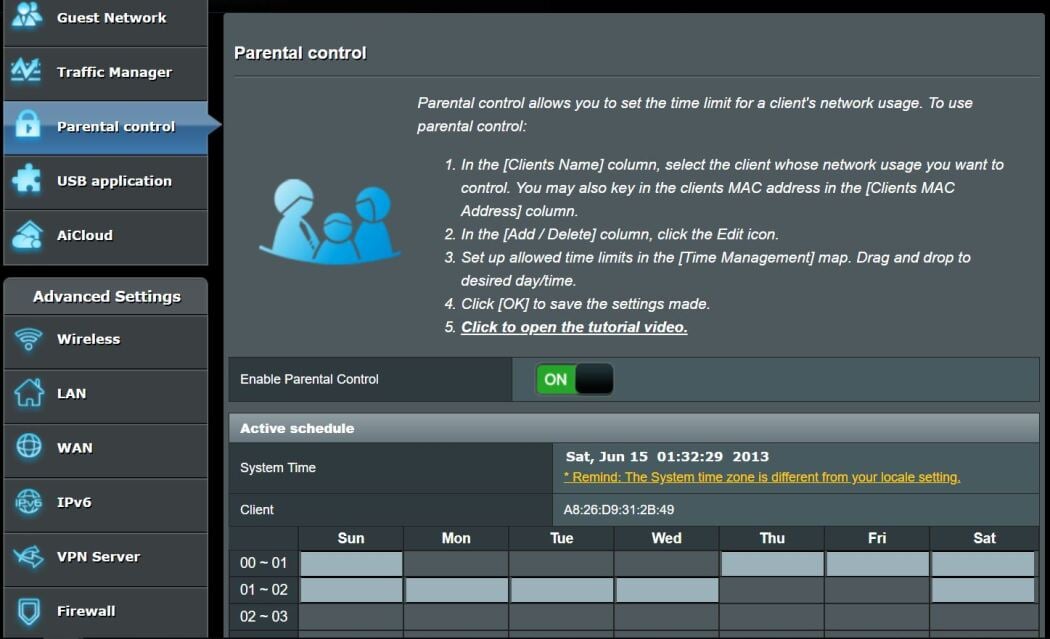
Configure it in order
Optimizing your router for low-latency gaming and 4K streaming requires a specific sequence of changes. Changing settings randomly can cause more lag than it solves. Follow these steps in order to stabilize your connection.


As an Amazon Associate, we may earn from qualifying purchases.
Mistakes That Break the Setup
Even the fastest modem cannot fix a router configured for convenience rather than performance. Gamers and 4K streamers often encounter latency spikes or buffering because the default settings prioritize broad coverage over signal stability. These common configuration errors introduce micro-latencies that compound quickly, turning a smooth experience into a stuttering one.
Leaving Firmware Outdated
Routers ship with firmware that addresses initial compatibility, not peak performance. Manufacturers release updates that fix packet handling bugs and improve QoS (Quality of Service) algorithms. Running outdated firmware is like driving a car with worn brakes; the hardware works, but it fails under stress. Check your router’s admin panel for updates and enable automatic updates if available. This small step often resolves unexplained drops during peak usage hours.
Enabling Legacy Wi-Fi Modes
Many routers default to "Mixed Mode" (802.11b/g/n/ac/ax) to support old devices. This forces the router to manage slower protocols, creating airtime inefficiency. For gaming and 4K streaming, disable 2.4 GHz bands for devices that don’t need them, and set 5 GHz bands to 802.11ac/ax only. This reduces interference and ensures your high-bandwidth devices communicate at the highest possible speed. If you have older devices, isolate them on a separate guest network rather than slowing down your primary network.
Ignoring Channel Width Settings
Automated channel selection often picks congested or narrow channels. A 20 MHz channel width is stable but slow; 160 MHz is fast but prone to interference. For 4K streaming, 80 MHz is often the sweet spot. Manually set your channel width to 80 MHz on the 5 GHz band. Use a Wi-Fi analyzer app to find the least crowded channel in your area. Avoid 2.4 GHz entirely for latency-sensitive tasks, as it is too crowded and slow for modern 4K streams.
Overloading QoS with Rules
Quality of Service (QoS) is designed to prioritize gaming traffic, but misconfigured QoS can throttle your entire connection. Many users enable "Gaming Mode" without understanding its impact. Instead of broad gaming prioritization, set specific QoS rules for your gaming console and PC. Assign them the highest priority, but leave room for video streaming traffic. If QoS causes instability, disable it and rely on your router’s built-in traffic shaping instead. Test both approaches to see which provides lower ping for your specific ISP.
Router optimization 2026: what to check next
Readers often worry that tweaking settings might break their internet or that modern routers handle everything automatically. These answers address the most common practical objections before you start changing configurations.
No comments yet. Be the first to share your thoughts!