
Access the AI management interface
Modern home security relies on more than just a standard gateway. The ASUS ROG Rapture GT-BE19000AI distinguishes itself through a dual-chip architecture, pairing a traditional CPU with a dedicated AI core. This hardware separation ensures that machine learning tasks, such as traffic analysis and anomaly detection, run without slowing down your primary network throughput. To configure these features, you must navigate to the specific AI dashboard rather than the general router settings.
Start by connecting to your router’s local IP address and logging into the web-based management portal. Once inside, look for the "AI Board" or "AI Features" tab in the main navigation bar. This section is distinct from the standard Wireless or Security tabs and is where the dedicated AI core’s capabilities are exposed.
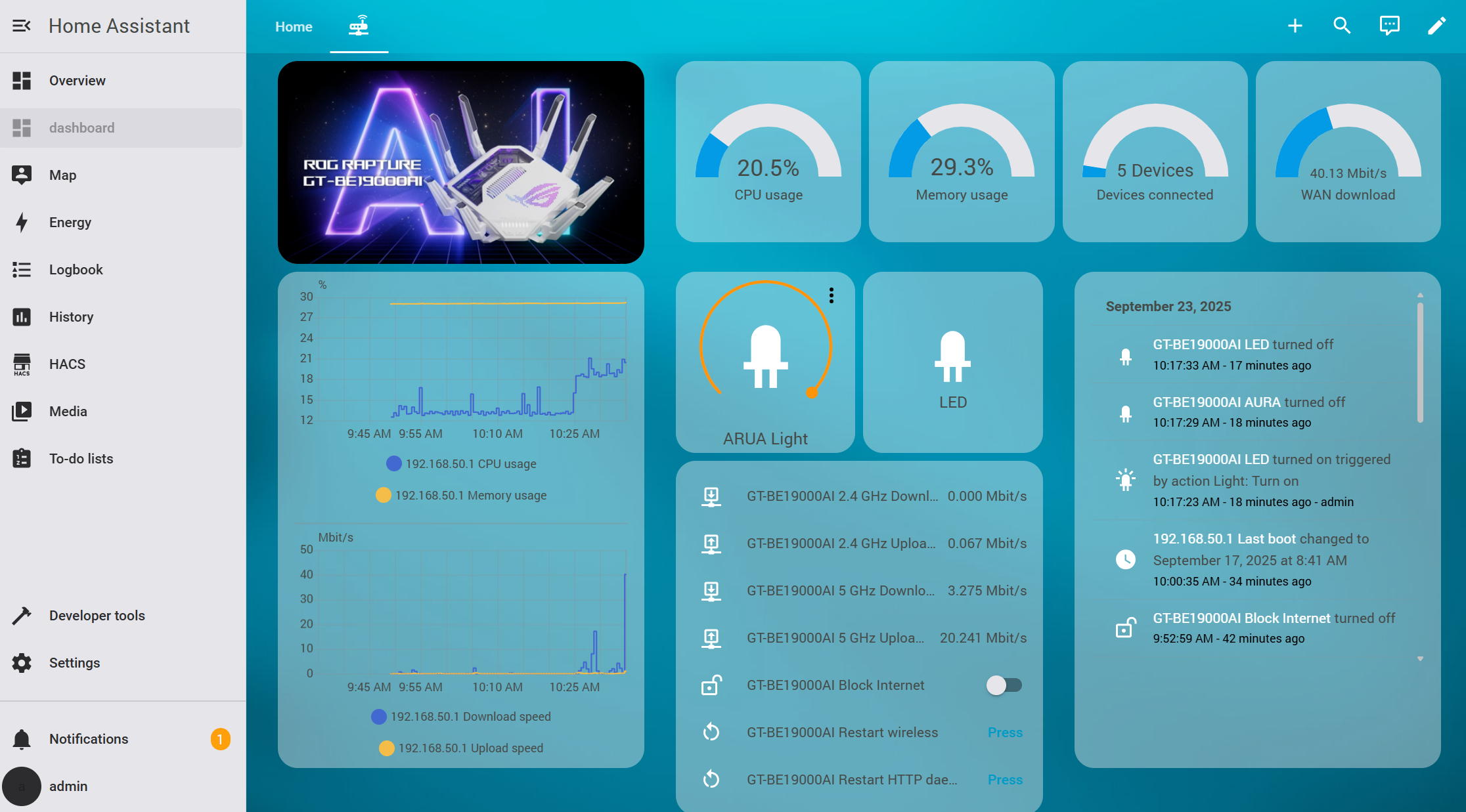
Open a browser on a device connected to your home network. Enter the router’s IP address (typically 192.168.1.1 or asusrouter.com) and sign in with your administrator credentials. Ensure you are on the latest firmware version, such as 3.0.0.6.102, to access all AI Board features.
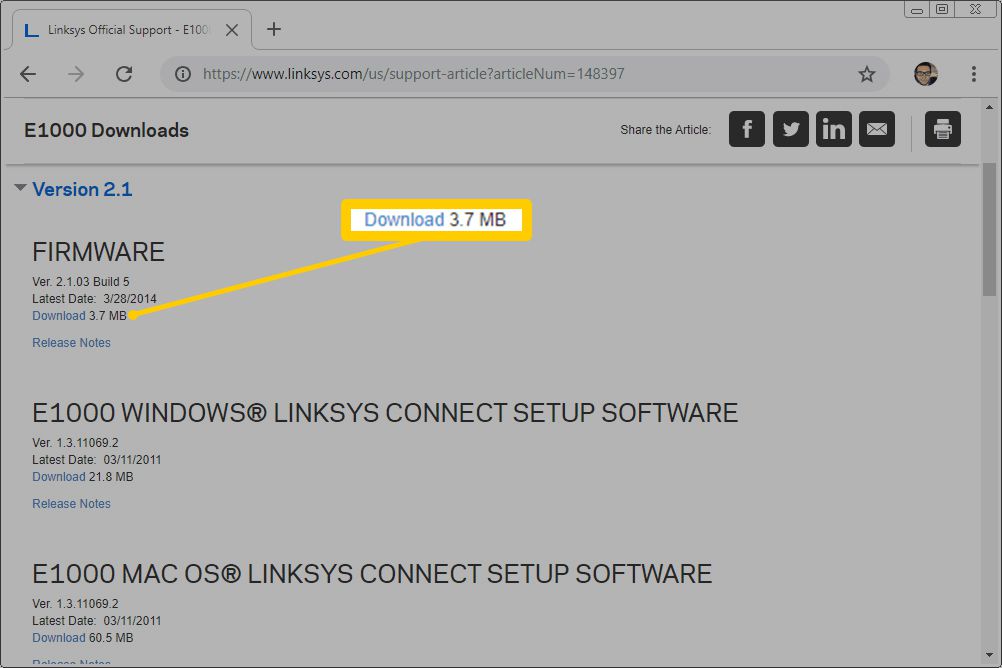
Locate the main menu and click on the "AI Board" tab. This interface is separate from the standard settings and houses the controls for the dedicated AI core. Here you will find toggles for AI-powered game acceleration, traffic optimization, and device profiling.
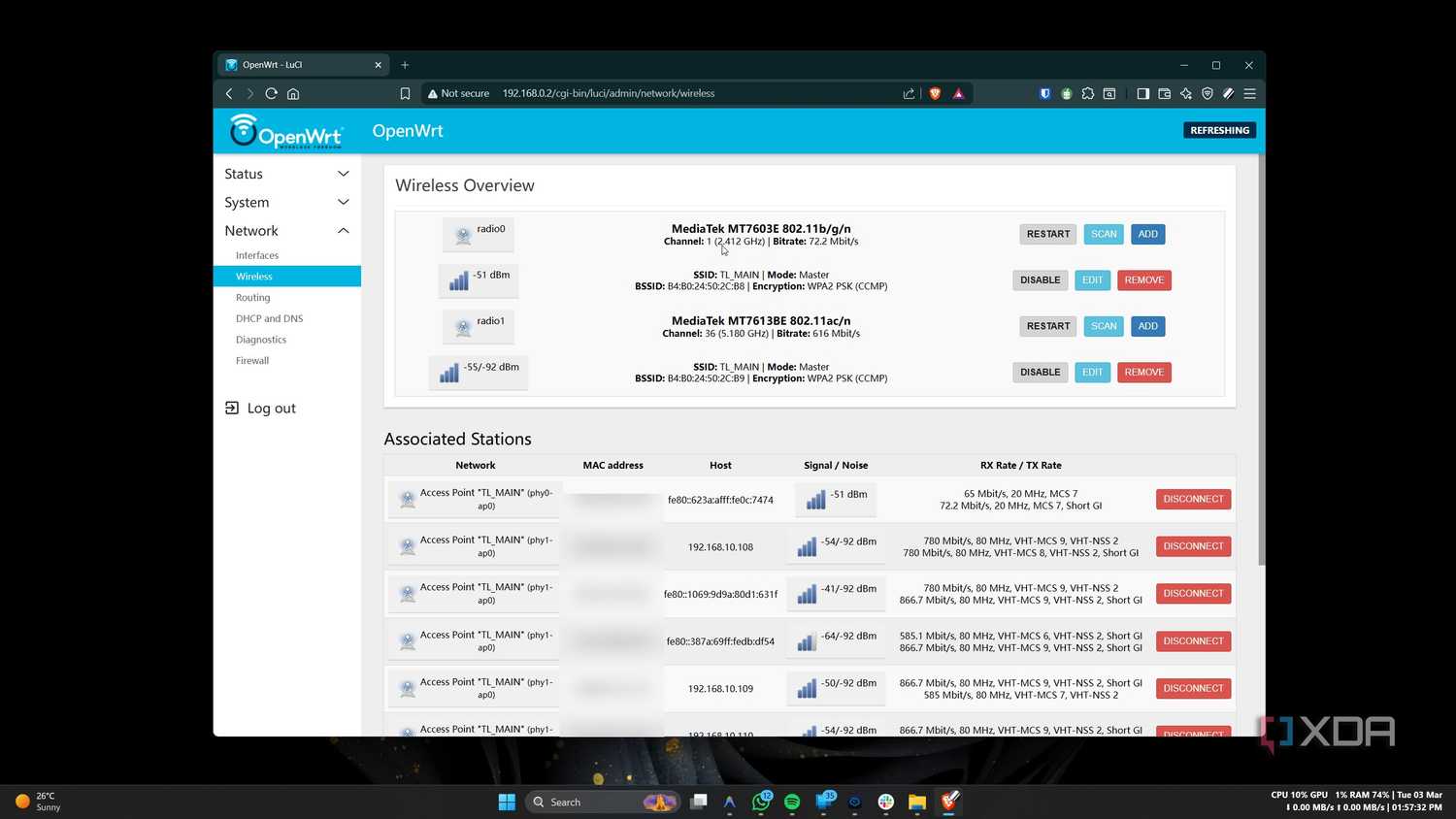
Within the AI Board, enable the security-specific modules. Look for options related to intrusion detection or automated device isolation. These features leverage the dual-chip architecture to monitor traffic patterns in real-time, identifying potential threats without impacting your internet speed.
This dedicated interface allows you to fine-tune how the AI core interacts with your home network. Unlike generic routers that rely solely on the main CPU for security checks, the GT-BE19000AI’s AI core handles complex pattern recognition independently. This ensures that your home security remains robust and responsive, even during high-bandwidth activities like gaming or 4K streaming.
Enable AI game boost and traffic shaping
The ASUS ROG Rapture GT-BE19000AI separates network intelligence from general processing by using a dedicated AI core alongside the main CPU. This dual-chip architecture allows the router to handle latency-sensitive tasks, such as game acceleration and traffic prioritization, without consuming resources needed for other functions. Enabling these features ensures your home security cameras and gaming consoles get the bandwidth they need before other devices.
Activate the AI core and game boost
Access the router’s web interface and navigate to the AI Pro or Game Boost section. Look for the toggle labeled AI Core or AI Acceleration. Enable this setting first, as it activates the dedicated hardware processor. Once active, select your primary gaming device or security application from the priority list. The router will now route that traffic through the AI core, reducing latency and preventing packet loss during peak usage.
Configure traffic shaping rules
With the AI core active, configure specific traffic shaping rules to manage bandwidth distribution. Go to the Traffic Analyzer or QoS settings. Create a rule that assigns the highest priority to your security cameras or gaming console. You can also set bandwidth limits for background tasks like large downloads or cloud backups. This ensures that critical security data and low-latency game traffic are never throttled by less important network activity.
Verify AI core status
After enabling the features, verify that the AI core is actively processing traffic. In the router’s dashboard, check the AI Core Status indicator. It should show active usage when your prioritized devices are online. For advanced users, you can use the CLI to check core load and traffic weights. This confirmation step ensures the dual-chip architecture is functioning as intended, providing the low-latency performance promised by the 2026 firmware.
Log in to the ASUS router web interface. Navigate to the AI Pro or AI Master tab in the main menu. This is the central hub for managing the dedicated AI core and its associated features.
Toggle the AI Core switch to On. Then, enable Game Boost or AI Acceleration. Select your priority device (e.g., gaming PC, security NVR) from the dropdown list. The router will now dedicate the AI chip to this device’s traffic.
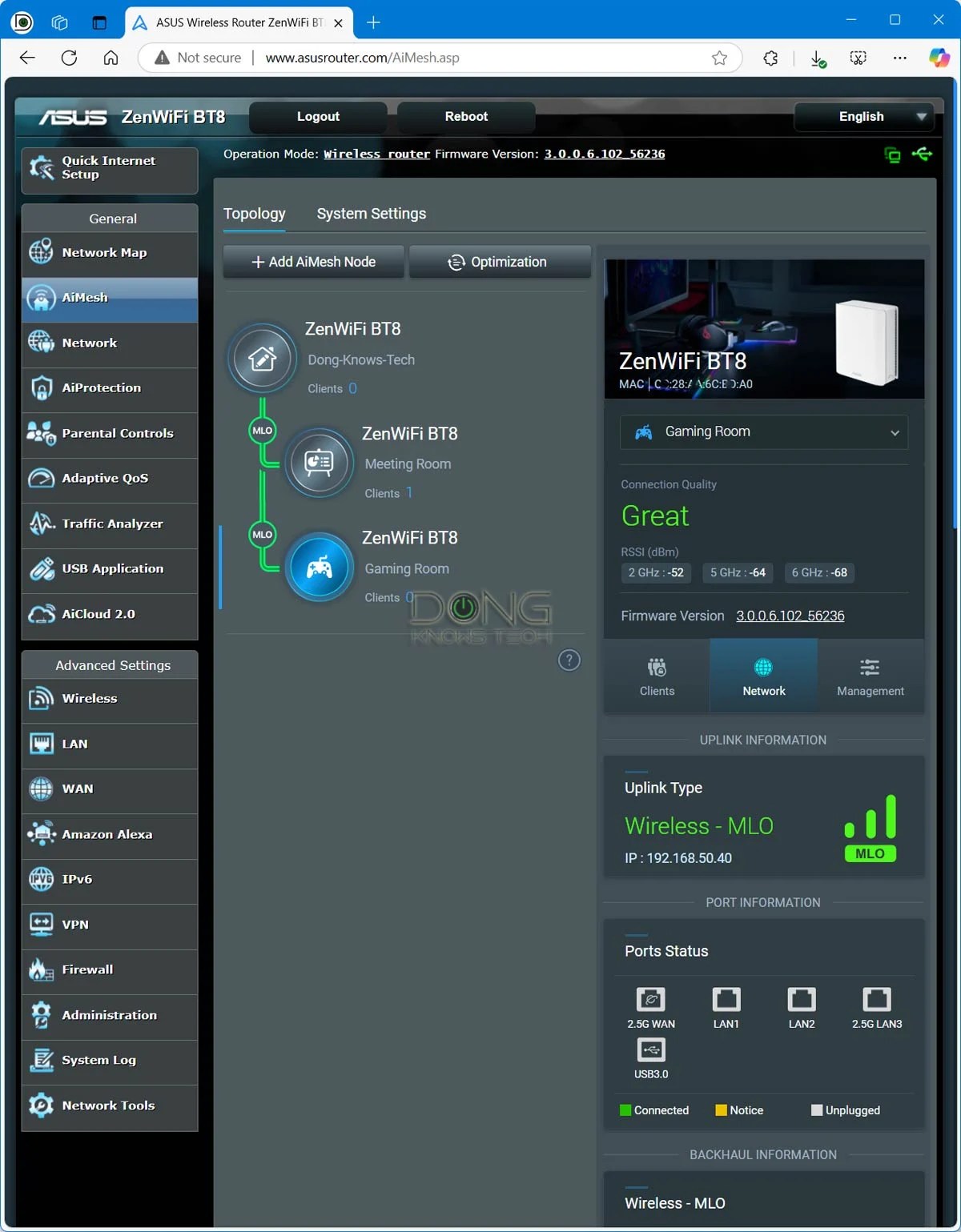
Go to Traffic Analyzer or QoS. Create a new rule for your security cameras or gaming console. Assign the highest priority level. Set bandwidth limits for non-essential devices like smart TVs or IoT gadgets to prevent them from interfering with critical traffic.

Return to the AI Pro dashboard. Check the AI Core Status indicator. It should show active processing when your priority devices are online. If the indicator is inactive, ensure the AI Core toggle is enabled and your priority device is connected.
Configure AI-driven parental controls
The ASUS ROG Rapture GT-BE19000AI replaces rigid, manual rule sets with automated content filtering and time management. This shift is possible because of its dual-chip architecture: a standard CPU handles routing, while a dedicated AI core processes network traffic patterns in real-time. Instead of creating static blocklists for every device, the firmware learns usage habits and adjusts protections dynamically.
To begin, access the router’s dashboard and navigate to the AI Board section. This interface centralizes the smart features powered by the secondary processor. You will find options for automated content filtering and time scheduling. These tools work together to manage screen time without requiring you to manually assign profiles to each device.
Once consent is granted, enable the automated content filtering. The AI core categorizes websites and apps based on current data, allowing you to block categories like social media or gaming during specific hours. You can set schedules that apply to all devices or target specific users. The system adapts to changes in traffic, ensuring that legitimate updates or educational content are not mistakenly blocked.
Log into the router’s web interface and locate the AI Board tab. This is where the dedicated AI core’s features are managed. Ensure you are running the latest firmware to access the privacy consent prompt.

The system will prompt you to accept the Privacy Policy. This is a mandatory step for firmware version 3.0.0.6.102_40425 and later. Without this consent, the AI features for content filtering and time management will remain disabled.
Turn on automated content filtering. The AI core will begin analyzing traffic to categorize apps and websites. You can then select categories to block or restrict. This replaces the need for manual URL lists, as the system handles updates automatically.
Define time limits for specific categories or devices. The AI core enforces these limits by managing network access directly. You can create daily schedules that automatically restrict gaming or social media during homework or sleep hours.
The dual-chip design ensures that these AI-driven tasks do not impact the primary CPU’s performance. This separation is critical for maintaining low latency for gaming and streaming while the AI core handles the heavier lifting of content analysis and policy enforcement. The result is a network that adapts to your family’s needs without constant manual intervention.
Integrate Docker for custom security apps
The ASUS ROG Rapture GT-BE19000AI distinguishes itself with a dual-chip architecture that pairs a high-performance CPU with a dedicated AI core. This hardware separation allows the router to handle intensive tasks without bogging down network traffic. Beyond its built-in Game Boost and AI-powered acceleration, the firmware includes native Docker support, turning the device into a compact server for your home network.
You can deploy lightweight security and monitoring tools directly on the router. This approach keeps sensitive data local and reduces latency by processing information at the network edge rather than sending it to the cloud. Common use cases include running Pi-hole for DNS-level ad blocking, deploying a local network scanner, or hosting a lightweight intrusion detection system.
To set up a custom application, access the router’s web interface and navigate to the Docker section. From there, you can import a docker-compose.yml file to define your service environment. The following snippet demonstrates how to configure a basic monitoring container with persistent storage and network access.
Using the host network mode ensures the monitoring tool sees all traffic on your local network, which is essential for accurate security auditing. Remember that the AI core handles the heavy lifting for standard routing tasks, so your Docker containers can run independently without impacting gaming performance or general browsing speeds.
Verify AI performance and stability
With the ASUS ROG Rapture GT-BE19000AI launching in spring 2026, the router’s dual-chip architecture separates general traffic handling from AI processing. The dedicated AI core handles 7.9 TOPS of neural network computations, ensuring that security analytics and automation do not bottleneck your primary network throughput. However, firmware updates can introduce latency spikes or misconfigured rules during the initial rollout.
Before relying on the router for critical home security, you must validate that the AI features are running correctly. This involves checking that the AI core is active, that Docker containers for security apps are stable, and that Game Boost or similar traffic prioritization features are not interfering with security traffic.
Use the following checklist to confirm your AI router firmware is stable and performing as intended.
Common ai router setup: what to check next
The ASUS ROG Rapture GT-BE19000AI introduces a dual-chip architecture that separates traditional routing from AI processing. This design ensures that firmware updates for the main CPU do not interfere with the dedicated AI core, which handles real-time traffic optimization and security automation.
No comments yet. Be the first to share your thoughts!