
Check the setup requirements
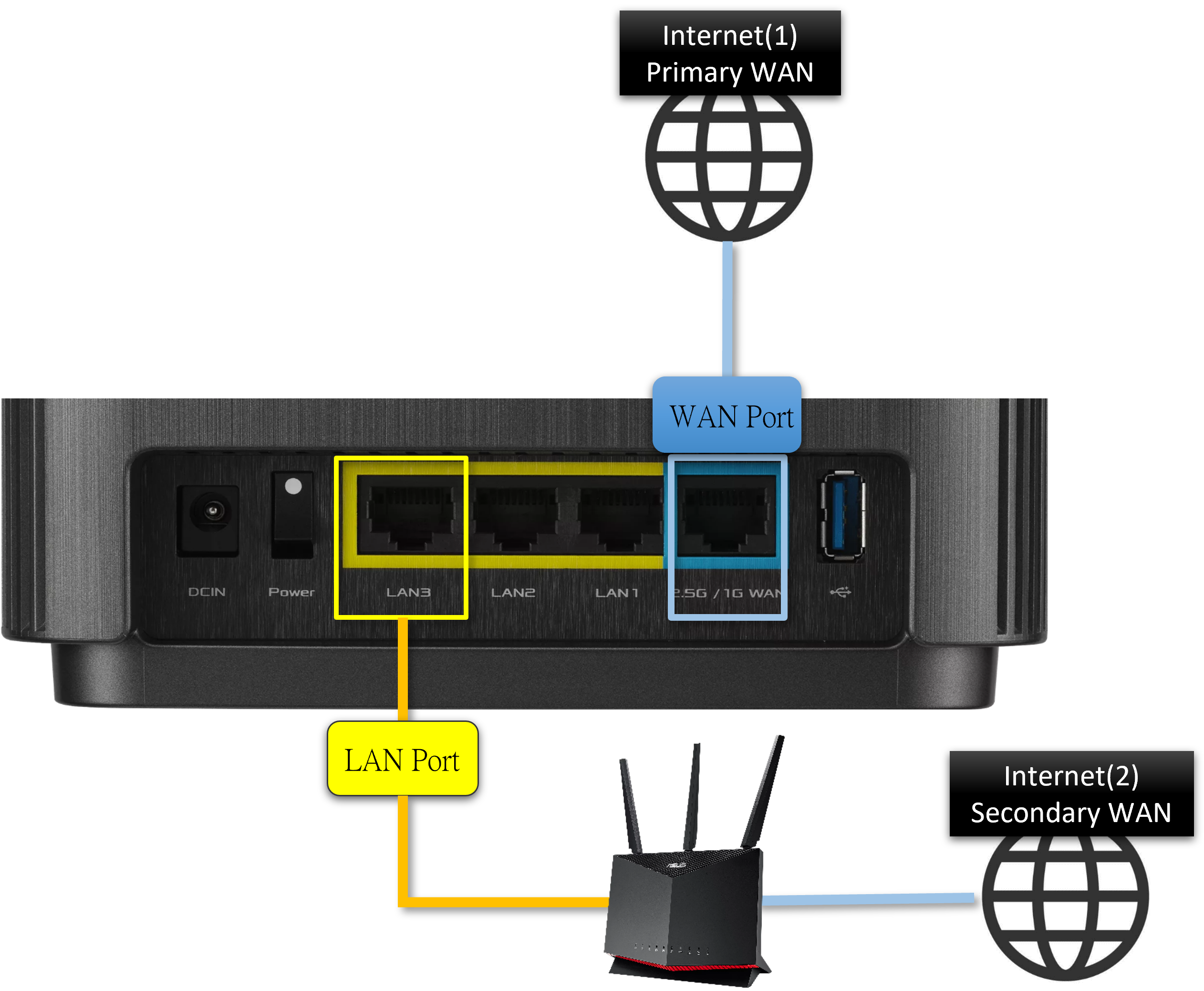
Before you enable multi-WAN load balancing, ensure your hardware and connections can handle the traffic split. This feature requires a router with at least two active WAN ports or support for multiple upstream connections. Consumer-grade routers with a single WAN port cannot perform load balancing, though they may support failover.
Verify your internet service providers (ISPs) allow multiple concurrent connections on your plan. Some residential ISPs prohibit bridging or multi-WAN setups in their terms of service. Ensure your modem or ONT supports the required bandwidth per port. If you are using two separate ISPs, confirm both provide static public IP addresses or reliable DHCP leases.
You will also need a computer with a wired Ethernet connection for configuration. Wireless management interfaces are unstable for network changes. Prepare the following:
- A compatible router (e.g., Ubiquiti UniFi, Mikrotik, or pfSense)
- Two active internet connections from different ISPs or modems
- Ethernet cables for WAN and LAN ports
- A static IP configuration sheet for both upstream connections
-
Router supports multi-WAN load balancing
-
Two active internet connections verified
-
Ethernet cables and wired computer ready
-
ISP terms allow multiple concurrent connections
Missing any of these steps often leads to misconfigured routing tables or dropped connections. Double-check your hardware compatibility before proceeding to the configuration phase.
Configure it in order
Setting up multi-WAN load balancing requires a specific sequence to avoid routing loops or IP conflicts. Start by connecting your hardware, then move to interface assignment, and finish with policy rules. If you skip the interface binding step, your router won't know which WAN port to use for which ISP.
Mistakes that break the setup
Even with enterprise-grade hardware like the Ubiquiti UCG-Max, a flawed configuration can turn redundancy into a liability. The most common failure point is ignoring ISP asymmetry. Internet connections rarely offer identical upload and download speeds. If you configure load balancing to treat both WAN ports equally, you’ll likely bottleneck your outbound traffic on the slower link, causing lag in video calls and slow file uploads despite having high-speed download capacity on the other line.
Another frequent error is neglecting session persistence. Without sticky sessions, a single web request might start on WAN 1 and have the next packet routed to WAN 2. Since most home routers do not have deep packet inspection for encrypted traffic, this causes connection drops. Ensure your load balancing algorithm supports session persistence or stick to simple round-robin only for unencrypted traffic.
Finally, many users overlook the default gateway configuration. In a multi-WAN setup, the router must know which interface to use for specific traffic types. If you don’t assign a secondary default route with a higher metric, the router may not properly fail over when the primary link drops. Always verify that your failover thresholds are set to trigger only after a sustained loss of connectivity, not after a brief packet loss spike, to avoid unnecessary route flapping.
Multi-wan router 2026: what to check next
Multi-WAN load balancing sounds like a silver bullet for internet outages, but it rarely works as simply as plugging in two cables. Before you buy hardware or reconfigure your network, understand the technical constraints and tradeoffs involved in combining different connection types.
Does load balancing double my internet speed?
No. Load balancing splits traffic across connections rather than combining their total bandwidth into one pipe. If you have a 100 Mbps fiber line and a 20 Mbps DSL backup, you won’t get 120 Mbps for a single download. Instead, the router sends some requests over fiber and others over DSL. This helps with multiple devices streaming or gaming simultaneously, but it does not increase the speed of a single large file transfer.
Will it fix lag in online gaming?
Usually not. Online gaming relies on low latency and stable packet delivery, not raw bandwidth. Because load balancing can route packets from the same game session across different ISPs with different speeds, it often causes jitter and packet reordering. This results in lag spikes. Most gamers should use the faster connection for gaming and reserve the backup link strictly for web browsing or video streaming.
Can I mix fiber and cellular for home use?
Yes, but you must configure failover, not load balancing. Cellular connections have higher latency and variable throughput. If you try to load balance a fiber connection with 4G LTE, the router will struggle to manage the speed difference, leading to dropped connections. Set the cellular line as a backup that only activates when the fiber goes down. This ensures stability without the complexity of splitting traffic.
Do I need an enterprise router for this?
Not necessarily, but consumer options are limited. Most standard home routers lack the firmware to manage multiple WAN interfaces effectively. You will likely need a business-grade router like the Ubiquiti Cloud Gateway or a specialized unit from Peplink. These devices handle session tracking and policy routing much better than basic consumer gear, ensuring that your active connections don’t drop when the primary internet link fluctuates.
No comments yet. Be the first to share your thoughts!